Advertisement Header

Monday, 11 June 2018

Analyzing large Java heap dumps using Memory Analyzer CLI in Linux

Description:

When you have a situation or need to analyze really large heap dump (like 30/40 GB), then most of the times MAT UI will fail to analyze such large files, in that case you can use Memory Analyzer CLI in Linux/Windows. In this post we will see how we use analyzer tool in Linux

Pre-req to setup 


  • Make sure you have enough physical / virtual (VM) memory available. (~at least equal to size of the file to make memory analyzer run smooth). 
  • Make Sure you have tool downloaded from here http://www.eclipse.org/mat/downloads.php 
  • Make sure you have necessary privileges or access on Linux system.

Steps to Follow


  • unzip download memory analyzer tool using unzip command 
    • unzip MemoryAnalyzer-1.7.0.20170613-linux.gtk.x86_64.zip
  • mat folder will be created then run "cd mat"
  • Run command to start dump analyzer
    • ./ParseHeapDump.sh /dumps/heap.date.bin ls -vmargs -Xmx40g -XX:-UseGCOverheadLimit
      • Xmx40g  - Here 40g represents allocated memory in GB for this process alter this as required.
      • /dumps/heap.date.bin - This file represent your dump file alter the filename with full path in it as required.
  • Above command will take time based on the size of the dump file and it will generate index files on the directory where your dump file exists
  • Now to generate html files run below command
    • ./ParseHeapDump.sh /dumps/heap.date.bin org.eclipse.mat.api:suspects
      • org.eclipse.mat.api:suspects - represents report type
      • Below are the other report types available
                              org.eclipse.mat.api:suspects
                org.eclipse.mat.api:overview
                org.eclipse.mat.api:top_components 


  • Above command will generate jvm_suspects.zip file which consists html files.
  • Now these html reports can be shared with anybody by scp/email/ftp as required.

Saturday, 9 June 2018

Installation and Setup Jenkins on Centos 7.x

Preparing Node (CenOS)

  • Setup Appropriate Hostname with FQDN
          echo "jenkins.rulepaper.com" > /etc/hostname
  • Install wget if your node installed with minimal OS installation
          sudo yum install wget -y
  • Install Java if it is not already exists
          sudo yum install java -y
  • Update system 
     sudo yum update

Installation of a stable Jenkins version

  • sudo yum install jenkins -y
  • set the jenkins service to start while booting "sudo chkconfig jenkins on"
  • Start the jnekins service "service jenkins start"

Configuration of Jenkins

  • Open Jenkins home page using your favourite browser http://hostname:8080 or http://ip-address:8080 

  • As mentioned in above pic, get your secure password from mentioned file using cat /var/lib/jenkins/secrets/initialAdminPassword
  • After validating your secret password, page will proceed wot SetupWizard
  • You can select "install suggested Plugin" option to proceed with plugin installation.

  • Suggested plugin installation will start and right side you will see installation status.
  • Post installation it will prompt us to create first admin user.

  • File the user details and click on "Save and Continue", followed by instance configuration click on "Save and Finish".

  • Now Jenkins is ready to start using it click on "Start using Jenkins".

  • It will take you to the Jenkins home page.


Will post a video soon on about "Explore Jenkins in Realtime"


Monday, 31 July 2017

How to Setup Billing Alarm in AWS

AWS Free Tier Account:


As we know Amazon provided great opportunity by providing Free Tier account for Tecno enthusiast / Freshers or in reality for any one who are trying to start their careers in to cloud world.

Free tier account really helps us to get our hands dirty, Below are the few services/resources which are highly useful while you are practicing

1) EC2       - 750 hours in a billing cycle (Monthly)
2) S3          - 5 GB
3) Lambda - 1 milling free requests
4) RDS       - 750 hours per month of db.t2.micro database usage (applicable DB engines)

Any many more, here you can find more details about Free tier https://aws.amazon.com/free

Why to setup Billing Alert?

Since many of us to try different services in different AWS regions, sometimes we may forgot to shutdown or delete resources which will leads to hit your limit on free tier, So once you hit your limit from there on Amazon will start billing for those resources we may realize that only when we get a bill. So these billing alerts will helps us to notify when the resource consumption is exceeding certain threshold which we set.

Setup Billing Allert:

Step 1: Once you login into AWS console, you can navigate your "My Account"or " "My Billing Dashboard" as below:


 Step 2: Navigate to "Preferences" Tab from the left column


             Enable "Receive Billing Alerts" option and then "Save preferences"


Step 3: You can choose "Manage Billing Alerts" option as below which will open new tab which leads to cloud watch service


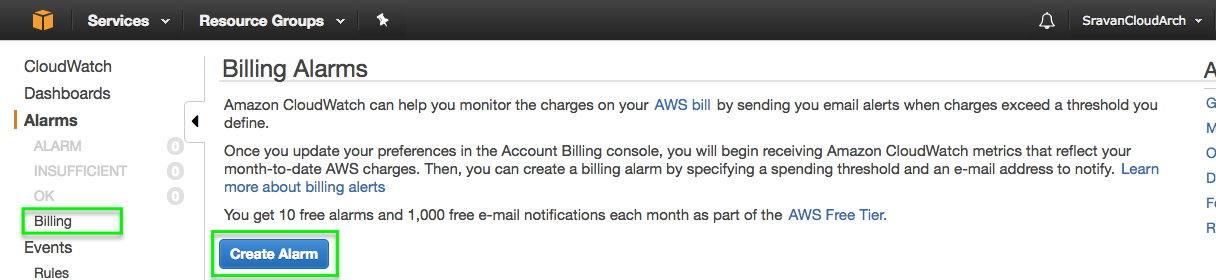
Step 4: Under Billing --> You can create New Alarm 


Now you can define you alarm with the threshold you want to set like 10$ / 15 $ any value as              your wish to sped / Month and give your valid email address where you want to receive alert


Step 5: Once Create Alarm, You will get a notification to the given email ID as below:


            You can confirm your subscription by clicking on the link

Now you can Alarm configured and from now cloud watch is going your consumption in terms of billing and send you alert when you exceed the billing threshold.


From now you need to pay more money then what you set threshold.

Hopefully you enjoyed this post, Here is the relevant hands on video